
ClipReady
Video utility · macOS
Your MKV, ready for Final Cut Pro.
Remux Blu-ray and DVD backups, MXF, and AVCHD into MOV or MP4 for Final Cut Pro, Compressor, and QuickTime. The video is copied, never re-encoded. Timing, surround audio, chapters, and timecode all come out right, and ClipReady shows you what will happen to every track before it runs.
Built for video essayists, assistant editors, and archivists working from disc-sourced and camera media.
Requires macOS 15 (Sequoia) or later · Apple Silicon only
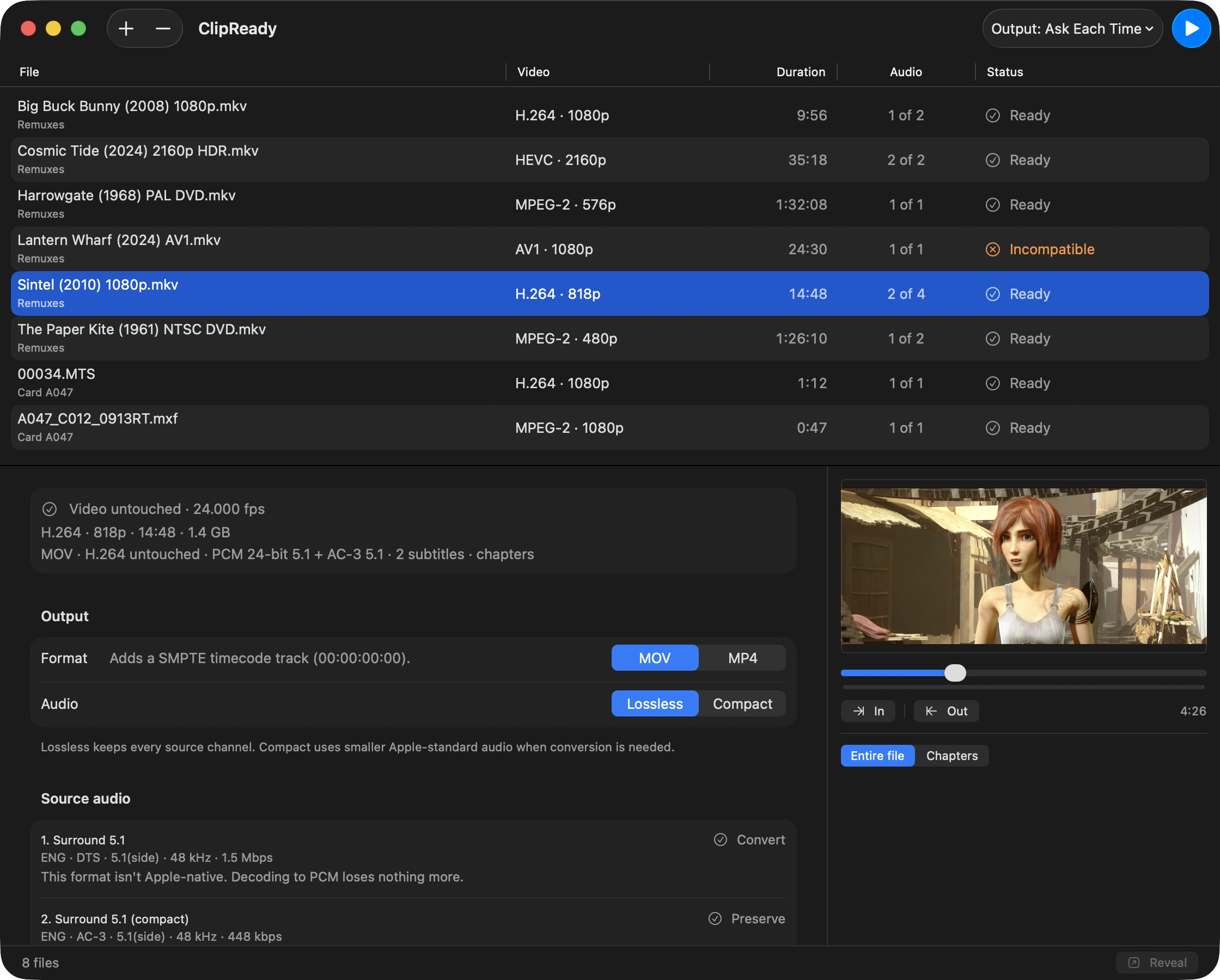
Watch it work
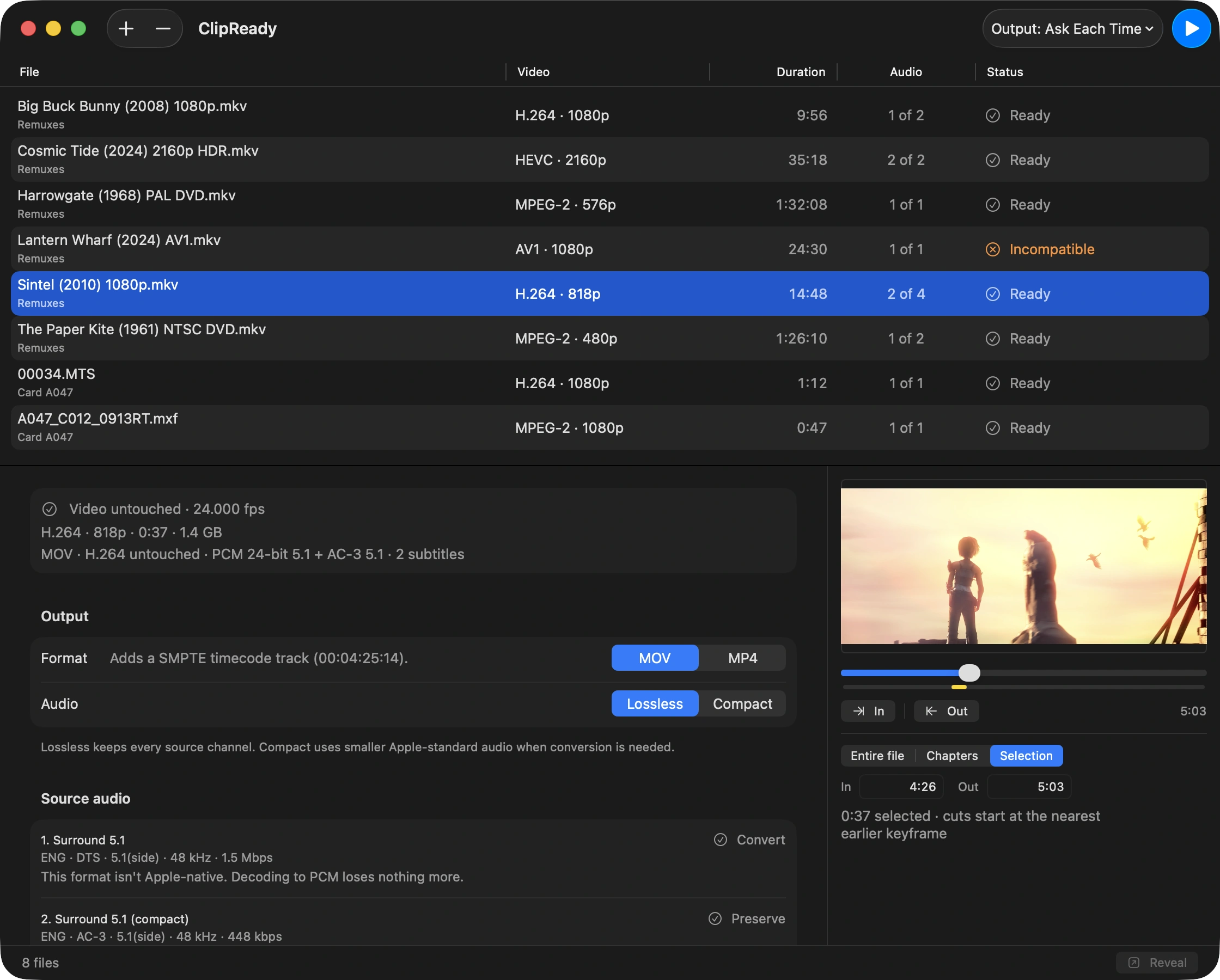
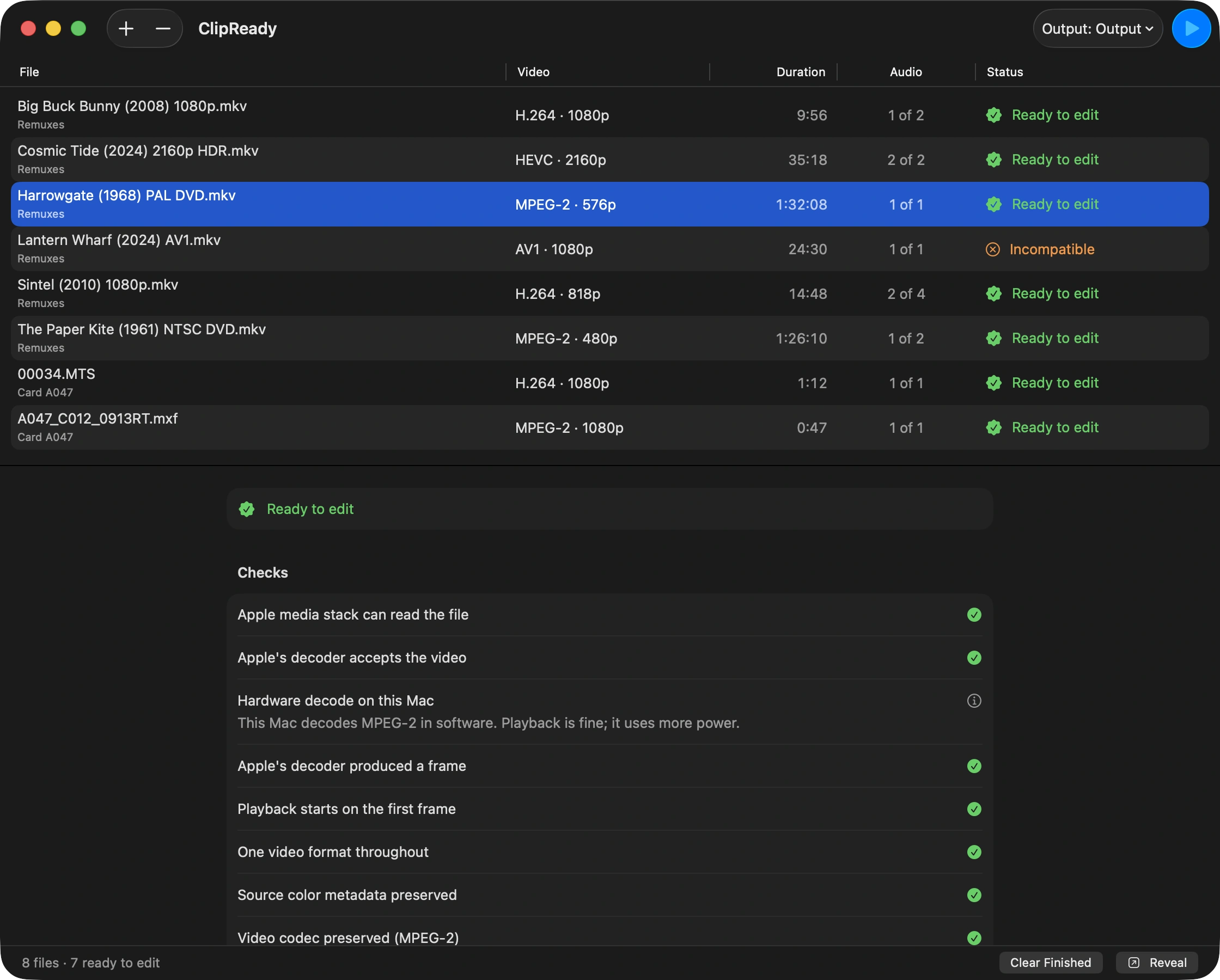
A real session, start to finish: three disc-sourced files going in, and edit-ready MOV coming out with the picture untouched.
Transferred, not transcoded. MOV is a container, and so is MKV. Put the two side by side and you can see what ClipReady actually does: it builds a new container and moves the tracks across, deciding each one on its own and saying which before it runs. The encoded picture is copied as it is, because there is no encoder on that path to rebuild it with. AC-3 comes over untouched. DTS cannot, so it is written as PCM. SubRip survives as MOV Text; PGS subtitles are images rather than text, so they stay in the original file. The frame timing is the one thing genuinely rewritten: the same frames, put back on an even grid, so Final Cut stops reading 23.976 as 23.81. A timecode track is written too, when the frame rate is solid enough to define one.
Files you already have
ClipReady opens a video file on your disk and writes a new MOV or MP4 next to it. Your original is never modified.
- No discs involved
- It does not read, rip, or decrypt discs, and it removes no copy protection. Getting a file off a disc is separate software’s job.
- No encoder on the default path
- There is no quality slider because there is nothing to slide. The video bitstream is carried across as it is.
- One file, not a library
- No store, no catalog, no browsing, no search. Drop the files you want prepared.
- Nothing to reach
- The app ships without the network entitlement, and so do its bundled helpers.
MKV to MOV or MP4, without re-encoding
Same picture. Right timing. Audio that works.
-
Your video is never re-encoded
H.264, HEVC, and MPEG-2 bitstreams are carried across exactly as they are. Same pixels, no generation loss, and no 500 GB ProRes intermediate. There is no encoder on the default path, so preparation runs at the speed of a file copy instead of the speed of a transcode.
-
Final Cut can trust every entry point
Blu-ray and UHD discs lean on open GOPs, where a picture can look like a keyframe and still need the one before it. Written the usual way, the file offers those as safe places to begin, Final Cut starts decoding at one, and a single frame comes back as colored blocks—at the same timecode every time. ClipReady marks them as partial entry points instead, a distinction the QuickTime format has always carried. Scrubbing stays as quick, and the picture is untouched. How one frame ends up scrambled
-
The frame rate reads right
If Final Cut or Compressor says your 23.976 file is 23.81 fps, that is the MKV clock, not your video. Its millisecond timebase cannot hold 23.976, so frames land 41 and 42 ms apart. ClipReady snaps every packet back onto the exact frame grid. That is a timestamp operation: the picture is never touched.
-
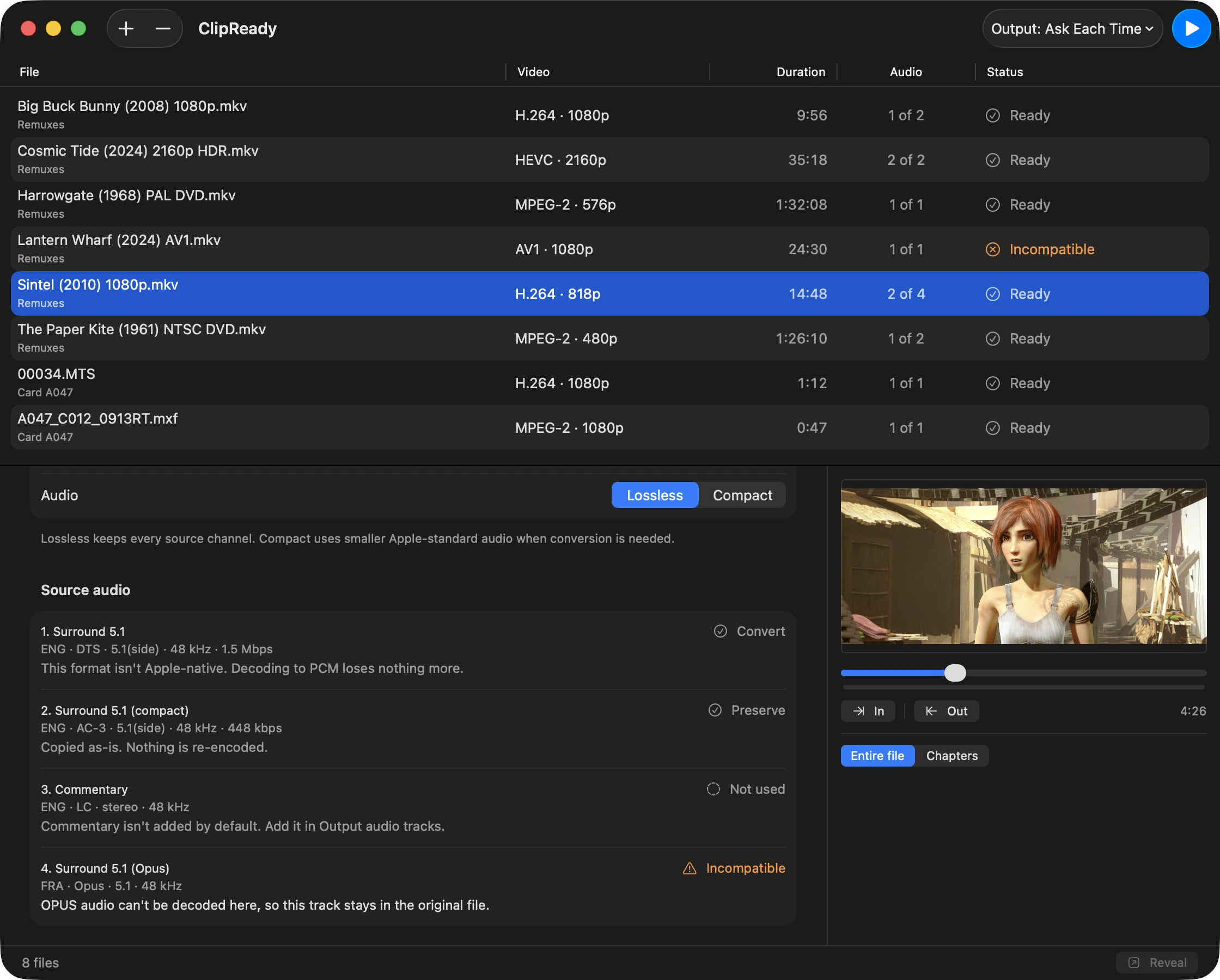
Every track tells you what will happen to it
Preserve, Convert, or Incompatible, with the reason, before anything runs. The label cannot disagree with the command that gets built, because the same resolved plan produces both.
-
Surround that comes out of the right speakers
A MOV needs a named channel layout or Final Cut guesses, and dialogue ends up in the left speaker. ClipReady writes one and checks it against Apple’s own decoder, the same one Final Cut and QuickTime use, instead of trusting the source tags.
Remux MKV, MXF, and AVCHD on a Mac
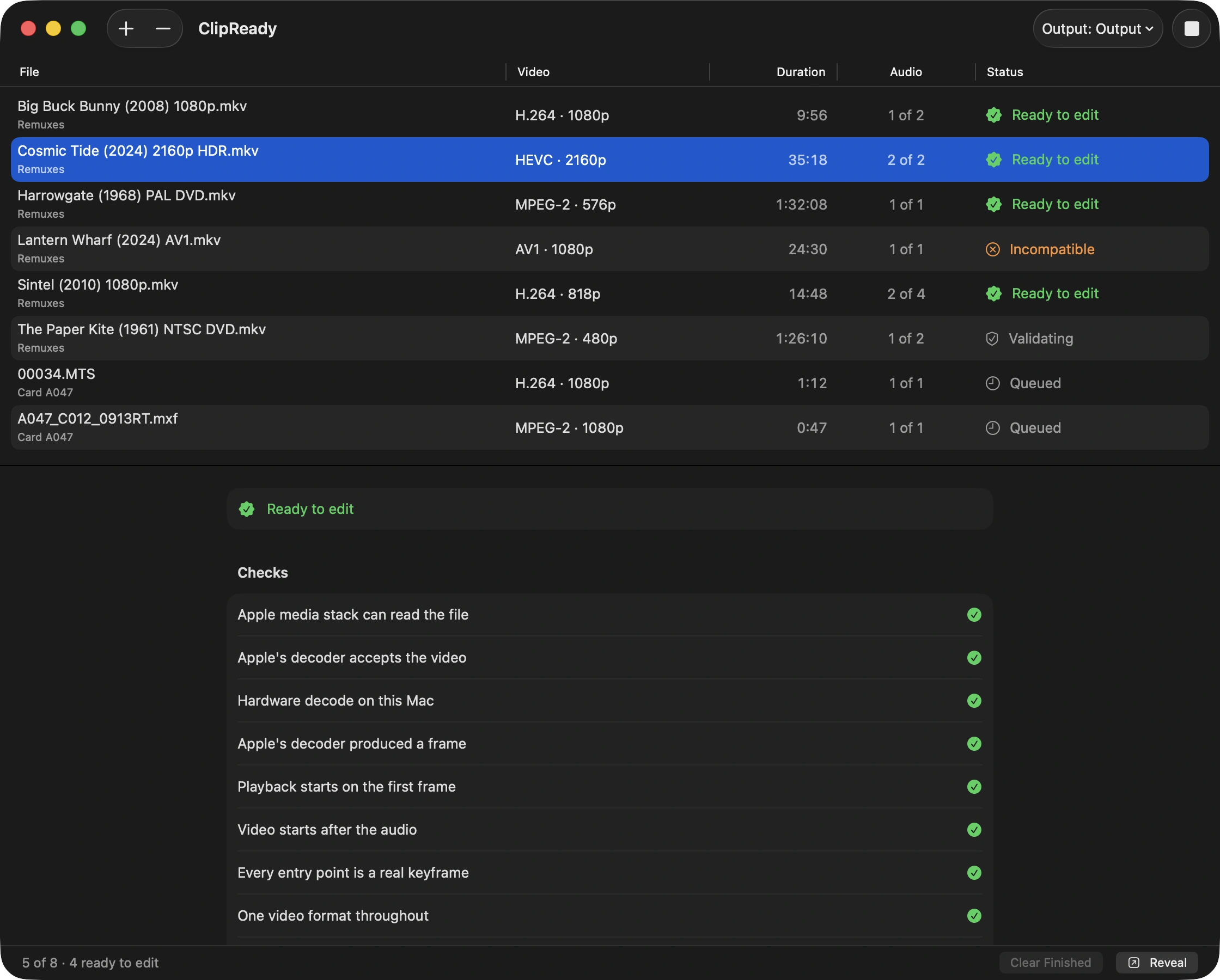
It tells you first, then checks its own work.
Beyond the remux
It does more than swap the container.
- Pull one clip, not the whole disc
- Scrub the source, set In and Out, and get just that stretch as a clean MOV. Same untouched video, with the timecode stamped for the in point. It lands on the nearest earlier keyframe and tells you so. One range per file: this is a clip, not a cut list.
- Proved before it is saved
- Every finished file is loaded back through AVFoundation and VideoToolbox: playable, decodable, right track counts, right duration, right timecode, right channel layout. If a check fails, nothing is written.
- Interlaced footage, read the right way
- Some AVCHD rewraps store each interlaced field as its own sample, so Final Cut reads 25 frames a second as 50 half-frames and the picture judders. ClipReady pairs the fields back into complete frames and preserves the field order, without re-encoding the video. For footage it positively detects as interlaced, you can also set field dominance by hand: As detected, Progressive, Upper First, or Lower First. That changes how the fields are declared, never the picture.
- AVCHD that scrubs in Final Cut
- Long-GOP AVCHD can crawl in Final Cut: scrubbing stalls and stepping backward a frame takes seconds, because the editor has to decode forward from the start of the clip to reach it. ClipReady keeps every H.264 and HEVC recovery point indexed, so Final Cut can start decoding nearby instead. The picture is untouched.
- Film DVDs come back at film rate
- An NTSC film DVD is progressive 23.976 hiding behind pulldown flags that make it report 29.97, and deinterlacing it softens a picture that was never interlaced. ClipReady counts those flags in three separate passes of the file and restores the film rate only when all three agree. When they disagree, the timing is left exactly as it was found. No inverse telecine, no re-encode, no dropped frames, and no guessing.
- Lossless audio stays lossless
- DTS-HD Master Audio and TrueHD become 24-bit PCM that Final Cut can scrub. Tracks Apple already plays are copied as they are. Compact E-AC-3 or AAC is an honest, labeled choice, never a silent one.
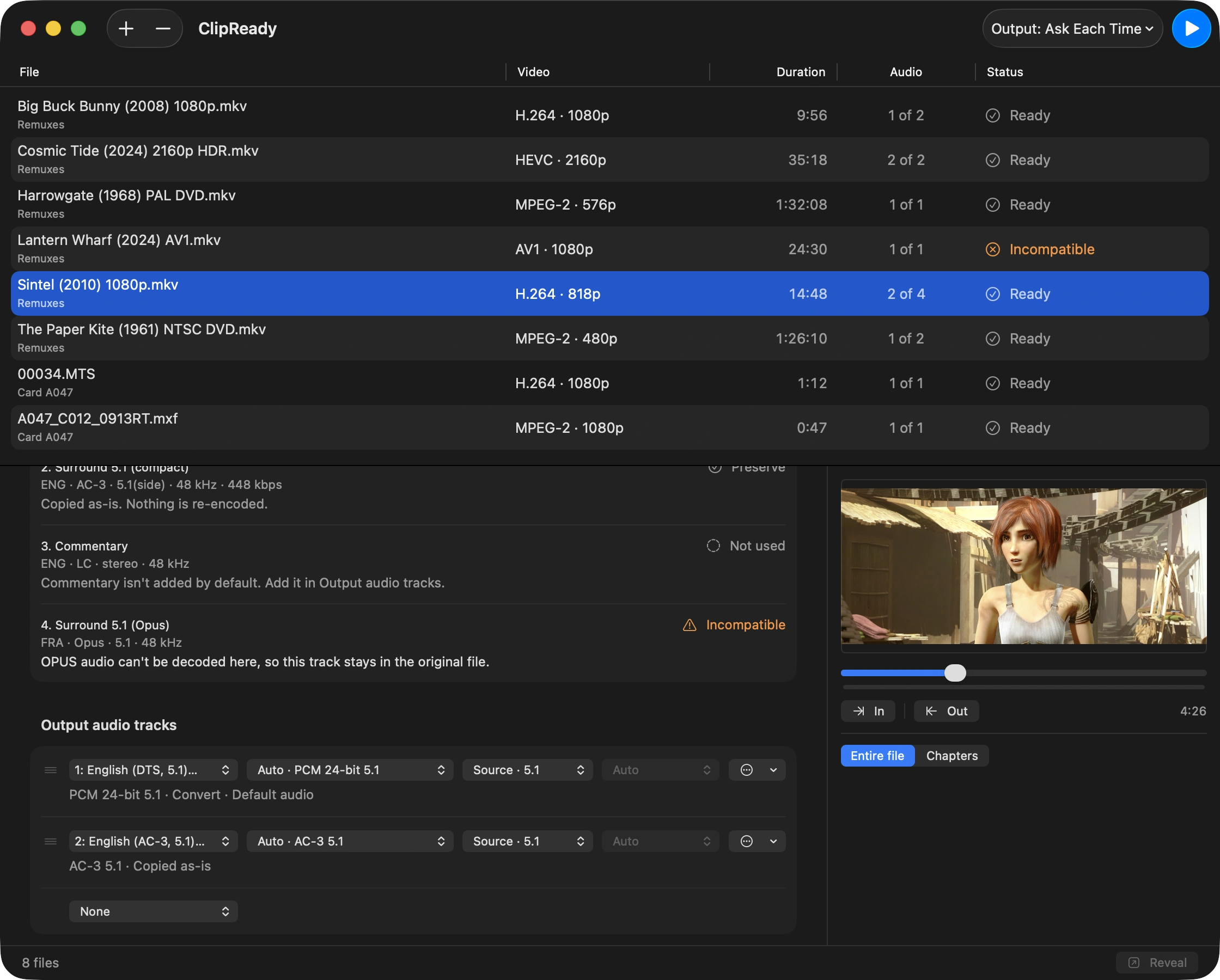
- One source track, two output tracks
- Source audio reports what the file holds and is not a control. Output audio tracks is one row per track the result will contain, and a row’s source is a picker, so picking the same DTS track twice gets you a 24-bit PCM copy to cut with and a compact one to hand off, out of one pass. The first row is the default track, which is the one QuickTime hands a listener who cannot switch, so you drag to set it rather than hoping.
- Chapters and a real timecode track
- Chapters ride along, and a tmcd track is written at the output rate, so Final Cut, Resolve, and Premiere line up and scene jumping works.
- Batch the whole folder
- Queue a whole folder of disc-sourced files and let it run. One job at a time, on purpose: a single file already saturates the disk, so running four would only make each one slower.
- An honest refusal
- VC-1 and AV1 have no path into Apple’s media stack without re-encoding, so ClipReady declines them and names the stream that stopped it. Bitmap subtitles stay behind in the original file: PGS on Blu-ray and VobSub on DVD are pictures, not text, and MOV and MP4 have nowhere to put them.
- Sandboxed, with no way out
- The app and both bundled helpers run inside the sandbox without the network entitlement. The helpers exist for the length of a job and are terminated with it.
What it prepares
Every stream gets one of three answers.
- Copied as-is The original bitstream is carried into the new file. Nothing is decoded, nothing is re-encoded, and the bits that come out are the bits that went in.
- Converted Apple’s media stack cannot read this one, so it is decoded and rewritten. The plan names the target first, and says whether anything was lost.
- Stays behind There is no honest path into a MOV or MP4. ClipReady names the stream and leaves it in your original file. Re-encoding around it would break the one promise this app makes.
Video
The picture is never re-encoded. Either the bitstream copies, or ClipReady tells you it cannot.
| Format | What happens | Why |
|---|---|---|
| H.264 | Copied as-is | |
| HEVC / H.265 | Copied as-is | Re-tagged hvc1 on the way through. Apple apps show hev1-tagged HEVC as unplayable, and that tag is the only thing that changes. |
| MPEG-2 | Copied as-is | A film DVD stores progressive 23.976 frames behind pulldown flags. ClipReady reads them across three passes and restores the film rate when they agree. No inverse telecine, no re-encode. A disc that is genuinely interlaced keeps the rate it declares. |
| ProRes | Copied as-is | Apple ProRes copies through, and still gets the full timing, timecode, and audio pass, so you get a clean MOV, not a skip. There is no ProRes encoder in ClipReady. |
| AV1 | Stays behind | AV1 isn’t verified in Apple’s media stack. |
| VC-1 | Stays behind | QuickTime and other apps built on Apple’s media stack can’t play VC-1. Preparing it would mean re-encoding the picture. |
Audio
Anything Apple already plays is copied. Anything it cannot is converted, and the plan says whether that cost you a single bit.
| Format | What happens | Why |
|---|---|---|
| AAC | Copied as-is | |
| AC-3 (Dolby Digital) | Copied as-is | The 5.1 layout is written as a named CoreAudio tag, not a generic bitmap, which is what keeps Center dialogue out of the right speaker. |
| E-AC-3 (Dolby Digital Plus) | Copied as-is | Same named layout. |
| ALAC, stereo and mono | Copied as-is | Apple Lossless at one or two channels copies straight through. |
| PCM, 16- and 24-bit | Copied as-is | Into MOV. |
| DTS-HD Master Audio | Converted | This format isn’t Apple-native. Converting to 24-bit PCM keeps every bit. |
| TrueHD | Converted | This format isn’t Apple-native. Converting to 24-bit PCM keeps every bit. |
| DTS | Converted | Decoded to 24-bit PCM. Nothing further is lost in the conversion. |
| FLAC | Converted | To 24-bit PCM, bit for bit. |
| ALAC, 5.1 and above | Converted | Apple decoders play multichannel ALAC through the wrong speakers, so ClipReady converts it to PCM. Every bit is kept. |
| Opus, Vorbis, and anything else | Stays behind | The bundled decoders do not cover it, so the track stays in the original file. Guessing at it would be worse than declining. |
Subtitles
Text comes across. Pictures cannot: MOV and MP4 have nowhere to put a bitmap caption.
| Format | What happens | Why |
|---|---|---|
| MOV Text | Copied as-is | |
| SubRip (.srt) | Converted | Rewritten as MOV Text. |
| ASS / SSA | Converted | Rewritten as MOV Text. Styling is not carried. |
| PGS (Blu-ray) | Stays behind | PGS and VobSub stay in the original. MOV doesn’t hold bitmap captions. |
| VobSub (DVD) | Stays behind | Same reason: it is a picture, not text. |
Containers in: MKV, MXF, AVCHD (.MTS), M2T and TS, MP4, MOV, M4V. Out: MOV or MP4, though an MPEG-2 or ProRes picture gets MOV only. Blu-ray .m2ts disc rips and AVI camera variants are untested and therefore unsupported.
Rewrap vs. re-encode
Lossless is not the same as correct.
The usual result
- Every frame is re-encoded, so the file softens and the fans spin for an hour.
- The wrapper changes and the job stops there. Final Cut reads 23.81 and the timeline keeps warning you.
- The surround track arrives silent, or the dialogue comes out of the left speaker.
- You find out what happened after the export, by watching it.
- A format it cannot handle is quietly re-encoded anyway.
ClipReady
- The video bitstream is copied across. Same pixels, and it finishes at the speed your disk can copy the file.
- Timestamps are snapped back onto the exact frame grid, so 23.976 reads as 23.976.
- Unreadable audio is converted to lossless PCM, with the channel layout verified before the file is saved.
- Every track is labeled Preserve, Convert, or Incompatible, with the reason, before anything runs.
- It declines, and names the stream that stopped it.
Before you buy
What people want to know first.
- Does this rip discs?
- No. ClipReady works on video files that are already on your disk and removes no copy protection. Getting a file off a disc is a separate job for separate software.
- Will this reduce my quality?
- No. The video bitstream is copied across as-is, so the picture in the output is the picture that was in the source. Audio is a different matter. Formats Apple’s stack cannot read, DTS-HD Master Audio and TrueHD among them, have to be converted, and ClipReady defaults to lossless 24-bit PCM so nothing is lost there either. Each track says which of the two happened before you press the button.More on silent audio and wrong speakers
- Final Cut said my file was 23.81 fps. Is that what this fixes?
- Yes, and it is the flagship repair. MKV stores timestamps in milliseconds, which cannot represent 23.976 fps exactly, so frames land 41 and 42 milliseconds apart and Final Cut reads the average as 23.81. ClipReady snaps every timestamp back onto the exact frame grid. The picture is untouched; only the timing is corrected.The long version, with the arithmetic
- One frame comes back scrambled in Final Cut. Is that this?
- Almost certainly, if it is a single macroblocked frame at the same timecode every time and the file looks perfect in QuickTime Player or VLC. Blu-ray and UHD sources use open GOPs, and written the usual way the file advertises recovery points as places a decoder can start cold when they are not. Final Cut begins a decode segment at one and produces one bad frame. ClipReady records those as partial entry points instead, and refuses to save a file where an advertised entry point is not a real keyframe.The measurements, and what changed
- Can I drop camera files, or only disc backups?
- Both. Disc-sourced MKVs are the flagship, but MXF, AVCHD, transport-stream, and ProRes files get the same plan when the picture is MPEG-2, H.264, HEVC, or ProRes. Drop one file rather than a whole card. Spanned clips and “whatever Apple can play” are a different product.
- Why would a file come back Incompatible?
- Two video formats have no honest path into Apple’s media stack: VC-1 and AV1. ClipReady declines them. Re-encoding behind your back is the one thing it promises never to do. Bitmap subtitles stay in the original file: PGS on Blu-ray and VobSub on DVD are pictures, not text, and MOV and MP4 have no place to put them.
- Does this work with Premiere Pro, DaVinci Resolve, or After Effects?
- Yes. What ClipReady writes is an ordinary MOV or MP4—not a special format—so Premiere Pro, DaVinci Resolve, Compressor, and After Effects all open it. Motion-graphics work is the same story: disc-sourced or camera footage lands in a comp with the frame rate and timecode already right, which is the part that usually costs an afternoon. Final Cut is simply where the output is tested hardest, because wrong frame rates and wrong channel layouts show up there first, and it is Apple’s decoders that every finished file is proved against. Applications that ship their own importers, as Adobe’s do, are outside what ClipReady can verify for you.
- Does it encode to ProRes?
- No. There is no ProRes encoder in ClipReady. If your source is already ProRes it copies through into a clean MOV, with the same timing, timecode, and audio work applied around it.
- MOV or MP4?
- Choose MOV for editing, because it is what Final Cut and Compressor prefer. Choose MP4 for playback and sharing. If your source is MPEG-2 or ProRes, ClipReady offers MOV only.What remuxing actually does
- How is this different from HandBrake, Subler, or ffmpeg?
- HandBrake is an encoder. It is good at that, but everything it writes has been re-encoded, so you lose a generation of quality and an hour of your afternoon. Subler swaps the wrapper and stops there, and it is MP4-only.
ffmpeg -c copystops there too: it passes MKV’s millisecond timestamps straight through, which is what produces 23.81 fps in Final Cut, and it writes surround audio with no named channel layout, which is what puts dialogue in the wrong speaker. ClipReady does the same copy those tools do, fixes the two things they leave behind, and shows you the plan for every track before it starts.The full comparison with HandBrake - Why is the prepared file the same size as the original?
- Because it contains the same video. Preparation is a repackaging job, not a compression job, so the picture takes up what it always did. If the file got larger, lossless audio was expanded to PCM. Pick Compact audio if you would rather trade that for size.
- Does it run on an Intel Mac?
- No. ClipReady requires an Apple Silicon Mac (M1 or later) and macOS 15 or later. That is a deliberate design decision rather than a missing feature, and no Intel build is planned. Please check your Mac before buying.
- Why does it run ffmpeg?
- ClipReady bundles the
ffmpegandffprobetools and drives them with precisely-built arguments. They run inside the app’s sandbox with network support compiled out. Attribution and license details are in Settings → General → Acknowledgments, and on the privacy page.